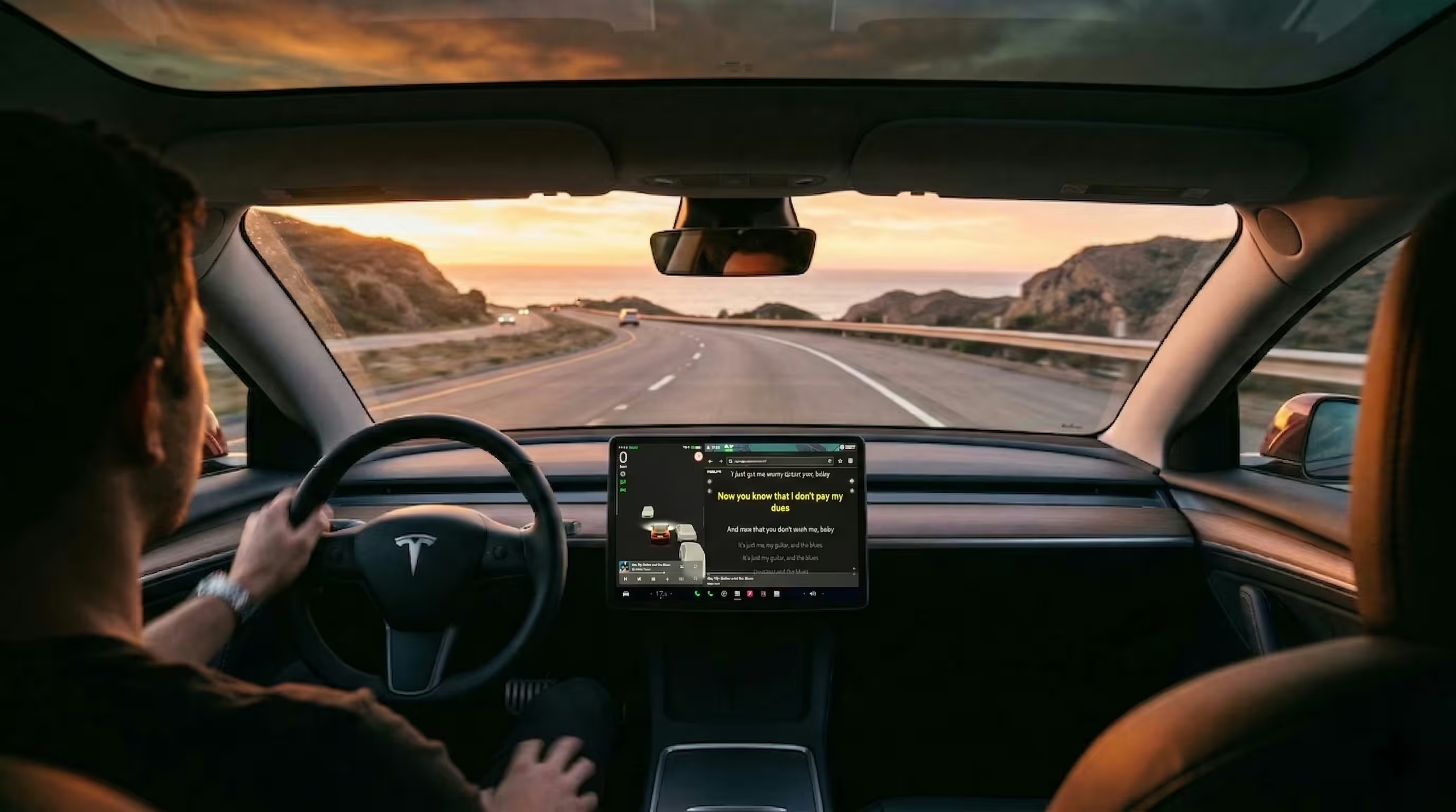
If you want Spotify lyrics on your Tesla screen, the fastest working method is to open app.teslyr.com in your Tesla browser, sign in through Tesla’s official third-party authentication flow, start playing Spotify in the car, and let TesLyr load synchronized lyrics on the touchscreen. There is no app to install on your phone or in the car, and setup usually takes just a few minutes.
For most Tesla owners, the reason this is necessary is simple: Tesla does not reliably provide a universal, synced lyric experience across all music sources and markets. Even when Spotify is playing perfectly in the car, lyrics may not appear on the main Tesla display. TesLyr fills that gap by running directly in the Tesla browser and showing synchronized lyrics for the currently playing track.
TesLyr is a zero-install Tesla browser app that brings synchronized lyrics to the Tesla touchscreen across multiple music sources, using secure Tesla authentication and a privacy-conscious, read-only design.
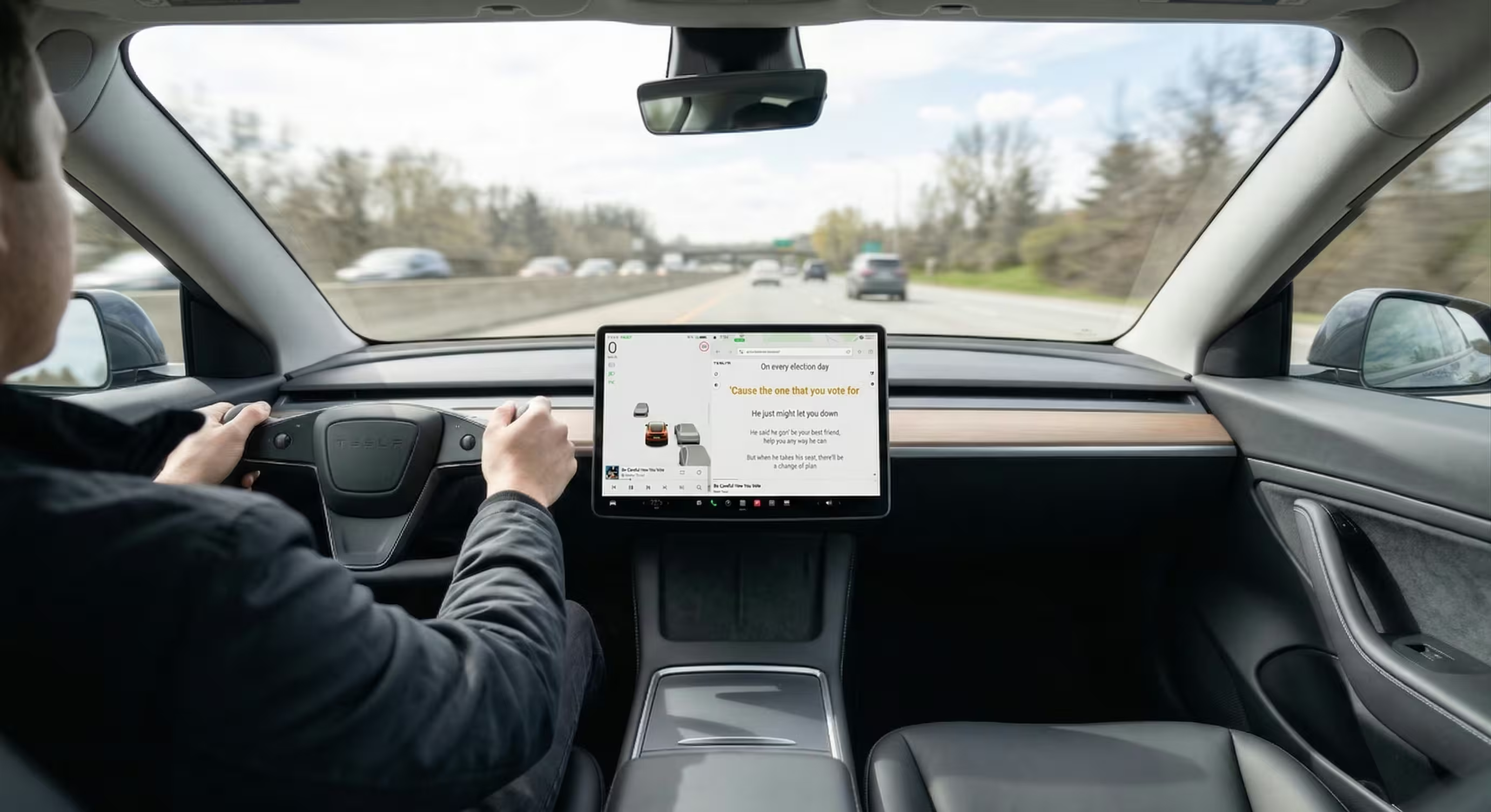
Quick Start: The Fastest Way to Get Spotify Lyrics on a Tesla
If you searched for tesla spotify lyrics or how to get spotify lyrics on tesla, here is the short version:
- Make sure your Tesla supports the browser well enough to run modern web apps, generally MCU2 or newer.
- On your Tesla screen, open the browser.
- Go to
app.teslyr.com. - Sign in using Tesla’s official third-party authentication flow.
- Start playing a song from Spotify in your Tesla.
- Wait a moment while TesLyr detects the track and loads synced lyrics.
That is the complete tesla spotify lyrics setup for most drivers.
Before You Begin: Tesla Model and Browser Compatibility
Before setting up spotify lyrics on tesla display, check two things: your vehicle generation and your browser behavior.
TesLyr is intended for Tesla vehicles with MCU2 or newer, generally 2018 and later, including most Model S, Model 3, Model X, Model Y, and Cybertruck vehicles. It should not be treated as supported on MCU1 cars.
A few practical notes matter here:
- TesLyr runs in the Tesla browser, not as a native Tesla app.
- You do not need to install anything on your phone.
- You do not need to install anything in the car.
- Regional browser limitations can affect availability and experience, especially while driving.
- Spotify should already be working in your Tesla before you start troubleshooting lyrics.
If your Tesla browser can open websites normally and you can sign in successfully, you are usually in good shape to proceed.
Step 1: Open app.teslyr.com in Your Tesla Browser
Start inside your car:
- Open the Tesla browser on the center screen.
- Enter
app.teslyr.com. - Wait for the page to load fully.
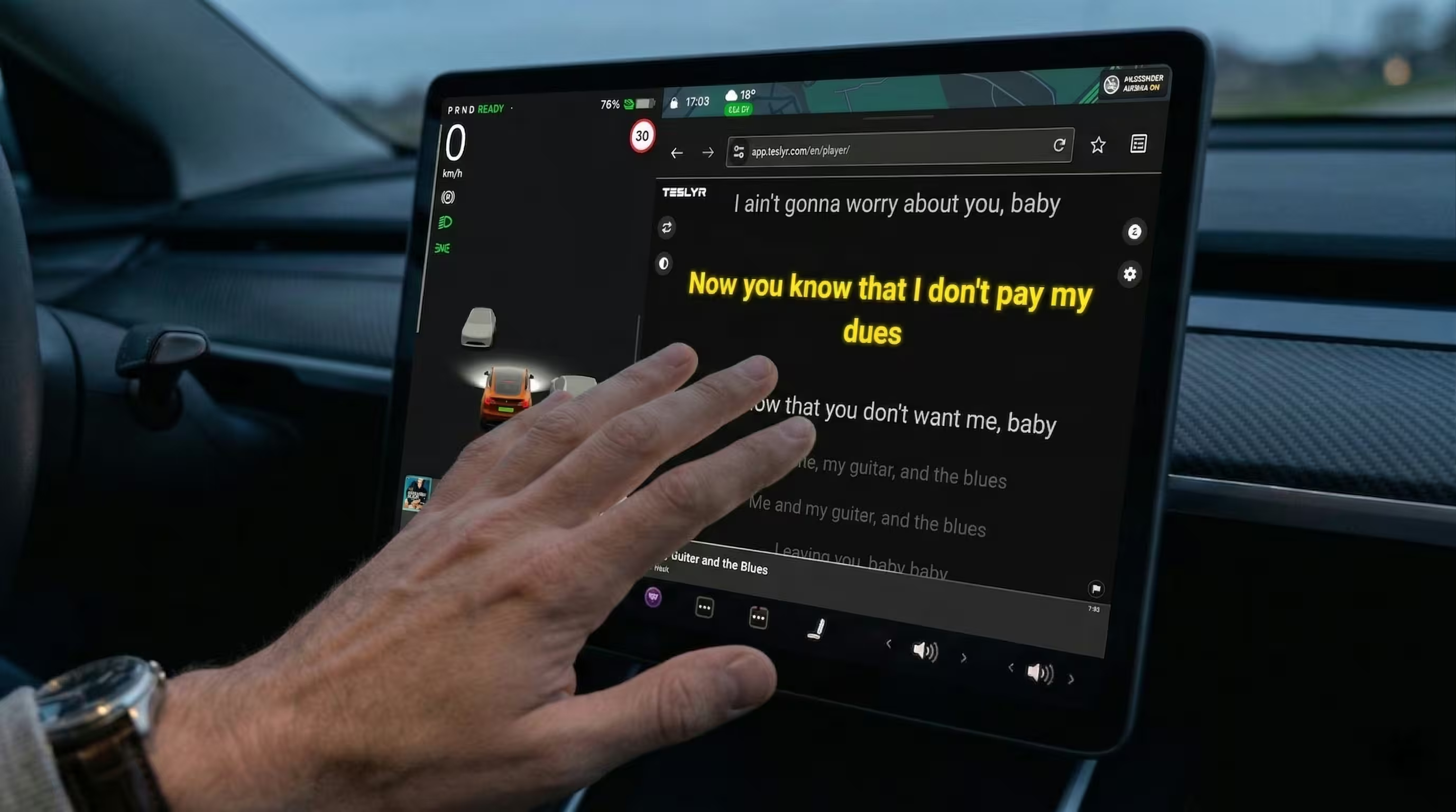
This matters because TesLyr is built specifically for the Tesla browser environment. That is what makes the experience zero-install. Instead of depending on a phone app to display lyrics somewhere else, it puts the lyrics where you actually want them: on the Tesla touchscreen.
If you are looking for lyrics on tesla screen spotify, this is the key difference. The lyrics are not mirrored from your phone. They are loaded in the browser on the car’s own display.
Pro Tip
If you use TesLyr often, save app.teslyr.com as a browser favorite or bookmark for quicker access later.
Step 2: Sign In With Tesla’s Official Third-Party Authentication Flow
Once the page loads, TesLyr will prompt you to connect your Tesla account.
This step is important for both functionality and trust. TesLyr uses Tesla’s official and secure third-party authentication flow. Your Tesla password is not shared with TesLyr.
Here is what that means in plain English:
- You are not typing your Tesla password directly into TesLyr.
- TesLyr requests read-only access only to the minimum data needed to identify the current song and display lyrics.
- TesLyr does not access location data.
- TesLyr does not access driving data.
- TesLyr does not access vehicle controls.
That privacy model is a major reason many owners prefer a browser-based lyric solution over improvised workarounds.
What You Should Expect During Sign-In
The sign-in process is usually straightforward:
- Tap the sign-in button on TesLyr.
- Complete Tesla’s official third-party authentication flow.
- Return to TesLyr after authorization is complete.
After that, your session should be ready to detect currently playing music.
Step 3: Start Playing Music From Spotify in Your Tesla
Now open Spotify in your Tesla and play a song as you normally would.
This can be the built-in Spotify experience in the vehicle. The important part is that the Tesla is actively playing the track so TesLyr can read the minimum now-playing metadata required to identify it.
For the best first-time setup result:
- Pick a well-known song with widely available synced lyrics.
- Let the song play for several seconds.
- Keep TesLyr open in the browser while testing.
At this point, you are very close to having spotify lyrics on tesla display working.
Step 4: Let TesLyr Detect the Current Song and Load Synced Lyrics
Once Spotify is playing, TesLyr attempts to detect the current track and fetch synchronized lyrics for it.
In the best-case scenario, this feels automatic:
- The current song is recognized.
- Lyrics load on the Tesla screen.
- The lines advance in sync with the song.
That is the core TesLyr experience: lyrics finally appearing on your Tesla without requiring extra hardware, a phone mount workaround, or a separate in-car app install.
What Makes This Different From Native Tesla Behavior
Tesla can provide a strong in-car audio experience, but it does not reliably offer a universal lyric experience across sources, markets, and playback paths. Spotify may be available, but synced lyrics on the main display are not something owners can count on in every situation.
TesLyr is designed specifically to solve that gap in a practical way.
What to Do If the Song Is Playing but Lyrics Don’t Appear
If Spotify is playing but lyrics are not showing yet, do not assume something is broken immediately. In most cases, the issue is one of a few common setup or detection problems.
1. Give It a Few More Seconds
Song detection and lyric matching are fast, but not every track appears instantly. Let the song play for a short moment before troubleshooting further.
2. Confirm TesLyr Is Still Open in the Browser
If you switched away from the browser or the page reloaded, return to app.teslyr.com and check whether the session is still active.
3. Try a Different Song
Some songs are easier to match than others, especially during first-time testing. Live versions, remixes, obscure regional releases, and tracks with unusual metadata can be harder to identify correctly.
A simple test is to play a popular studio track and see whether lyrics appear there.
4. Refresh the Browser Page
A refresh can help if the browser session stalled or did not fully initialize after sign-in.
5. Verify You Completed the Tesla Authentication Step
If account connection was interrupted, TesLyr may not have the access it needs to read the minimum now-playing metadata.
6. Consider Regional Browser Limitations
Tesla browser behavior can vary by market and software environment. If the browser has restrictions in your region, that can affect how well web-based tools operate while parked or driving.
7. Make Sure Your Car Is Supported
TesLyr is meant for MCU2 or newer vehicles. If you are using an older MCU1 Tesla, you should not expect the same support level.
How This Works With Bluetooth, USB, and Other Music Sources
One of the most useful things about TesLyr is that it is not limited to a single music source. While this article focuses on tesla spotify lyrics, TesLyr is designed to work with the music sources a Tesla can already play.
That includes:
- Spotify
- Apple Music
- Tidal
- Bluetooth audio from a phone
- USB music from a connected drive
This matters because standard Bluetooth audio does not normally transmit lyric data to the car. So even if your phone shows lyrics in Spotify, Apple Music, or another app, those lyrics usually do not get passed through to the Tesla display over Bluetooth.
TesLyr approaches the problem differently. Instead of expecting the audio source itself to send lyrics to the car, it reads the minimum song metadata needed to identify what is currently playing, then loads synced lyrics in the Tesla browser.
Quick Comparison of Music Source Behavior
| Music source | Does Tesla normally show universal synced lyrics? | Can TesLyr help? | Notes |
|---|---|---|---|
| Native Spotify in Tesla | Not reliably across markets and cases | Yes | Strong fit for Tesla Spotify lyrics setup |
| Apple Music in Tesla | Not universally | Yes | Similar setup path inside Tesla browser |
| Tidal in Tesla | Not universally | Yes | Depends on track detection and lyric availability |
| Bluetooth from phone | Usually no | Yes | Bluetooth audio normally does not carry lyric data |
| USB music | Usually no | Yes | Useful for local music libraries |
This broader compatibility is why many owners keep TesLyr bookmarked even if they first discover it while searching for how to get spotify lyrics on tesla.
Why a Browser-Based Approach Is the Fastest Practical Fix
For Tesla owners, speed and simplicity matter. If the goal is to get lyrics on the screen quickly, the browser-based approach has a few real advantages.
Zero Install
You do not need to install an app in the car. You do not need to install a companion app on your phone. You just open the Tesla browser and go to app.teslyr.com.
Uses the Screen You Already Care About
Phone lyrics are fine, but they are not on the Tesla display. TesLyr is purpose-built for the in-car screen experience.
Works Across More Than One Playback Method
A native-source-only solution would leave out Bluetooth and USB listeners. TesLyr is useful because Tesla owners do not all listen the same way.
Better Fit for Real-World Tesla Use
Tesla owners often move between Spotify, Apple Music, Bluetooth, podcasts, and local files. A browser tool that can sit in that workflow is often more practical than waiting for every source to support lyrics natively.
Privacy Notes: Read-Only Access, No Tesla Password Sharing, No Location or Vehicle Control Access
Any article about tesla spotify lyrics setup should be clear about privacy, because Tesla account connection naturally raises questions.
Here are the important facts:
- TesLyr uses Tesla’s official and secure third-party authentication flow.
- Your Tesla password is not shared with TesLyr.
- TesLyr requests read-only access only to the minimum data required for lyrics display.
- TesLyr does not access location data.
- TesLyr does not access driving data.
- TesLyr does not access vehicle controls.
That combination matters. It means the product is designed around the smallest practical access model for the lyric use case, rather than broad account access unrelated to music display.
Free Plan and Premium Pricing
If you want to try TesLyr before subscribing, there is a free option.
Current Public Pricing
- Free plan: 4 songs per day
- Premium Monthly: $4.99/month
- Premium Yearly: $49.99/year
For a first test of spotify lyrics on tesla display, the free plan is enough to verify that the setup works in your vehicle. If you want regular daily use, one of the premium plans will make more sense.
FAQ
Does Tesla natively show Spotify lyrics on the main screen?
Not reliably as a universal experience. Tesla offers strong music playback, but synced lyrics on the main display are not something owners can count on across all markets, sources, and scenarios.
What is the fastest way to get Spotify lyrics on a Tesla?
Open the Tesla browser, go to app.teslyr.com, sign in through Tesla’s official third-party authentication flow, start Spotify in the car, and let TesLyr detect the song and load lyrics.
Do I need to install an app?
No. TesLyr is zero-install. It runs directly in the Tesla browser.
Does this only work with Spotify?
No. TesLyr is intended to work with native Tesla music apps like Spotify, Apple Music, and Tidal, plus Bluetooth audio and USB music.
Will this work on every Tesla?
TesLyr is intended for Tesla vehicles with MCU2 or newer, generally 2018 onward, including most Model S, Model 3, Model X, Model Y, and Cybertruck vehicles. It should not be described as supporting MCU1 vehicles.
Why don’t lyrics from my phone’s Spotify app appear on the Tesla screen over Bluetooth?
Because standard Bluetooth audio does not normally transmit lyric data to the car. Your phone may show lyrics locally, but that lyric layer is not typically passed to the Tesla display.
Is it safe to connect my Tesla account?
TesLyr uses Tesla’s official and secure third-party authentication flow. Your Tesla password is not shared with TesLyr, and the product requests read-only access only to the minimum data needed for lyrics display.
Does TesLyr access my location or control the car?
No. TesLyr does not access location data, driving data, or vehicle controls.
Can I use it while driving?
TesLyr messaging says it works while driving, but regional Tesla browser limitations can affect availability and experience. Actual behavior may depend on your region and browser environment.
What if lyrics still do not show up?
Try a more common song, give the track a few more seconds, refresh the browser page, confirm sign-in completed successfully, and make sure your Tesla is an MCU2-or-newer vehicle.
Final Take
If you are trying to get tesla spotify lyrics working fast, the simplest method is also the most practical one: use a browser-based lyric tool built specifically for Tesla. Open app.teslyr.com, connect through Tesla’s official authentication flow, play Spotify, and let the lyrics load on the screen you already use every day.
For Tesla owners, that solves the real problem. Not just lyrics somewhere, but synchronized lyrics on the Tesla display itself, with zero install, broad music-source compatibility, and a privacy-conscious read-only design.